 BusinessStub
Begin with one clear change
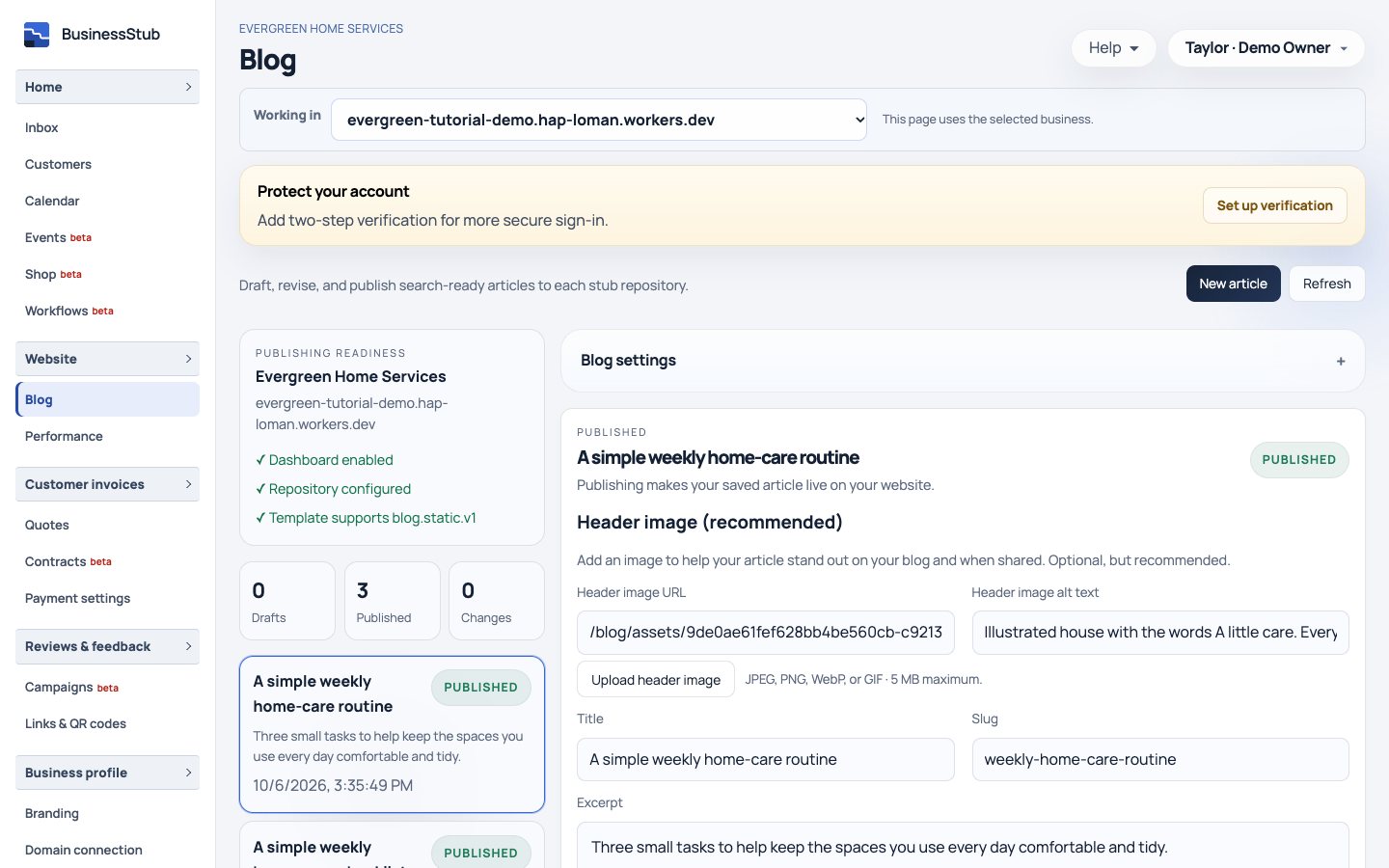
Choose the right business and page, then edit the field you actually want to improve. Small changes are easier to review—and much easier to undo if the wording is not quite right.
Your draft saves without changing the live website, so you have room to work.
Look at the preview like a customer would
Open the preview and check the page on both a wide screen and a phone. Read the surrounding copy, try the links, and make sure an image or longer sentence has not pushed anything out of place.
When it is ready, use the publishing option available to your account and check the live page once more.
Need more than the editor can do?
Send the design team a short, concrete request: name the page, describe the result, and say what should stay the same. Screenshots or example links are welcome when they make the idea clearer.
You will get a preview before anything goes live. Review that version carefully, ask for changes if needed, and approve it only when it matches the request.
Need a hand?
Tell us the business, page, what you expected, and what happened instead. Please leave out passwords and private customer details.
Explore common fixes →