 BusinessStub
An inquiry seems to be missing
Check the selected business, filters, and closed conversations in Inbox. If a recent submission is still gone, share the page and approximate submission time so routing can be traced.
Alerts are not arriving
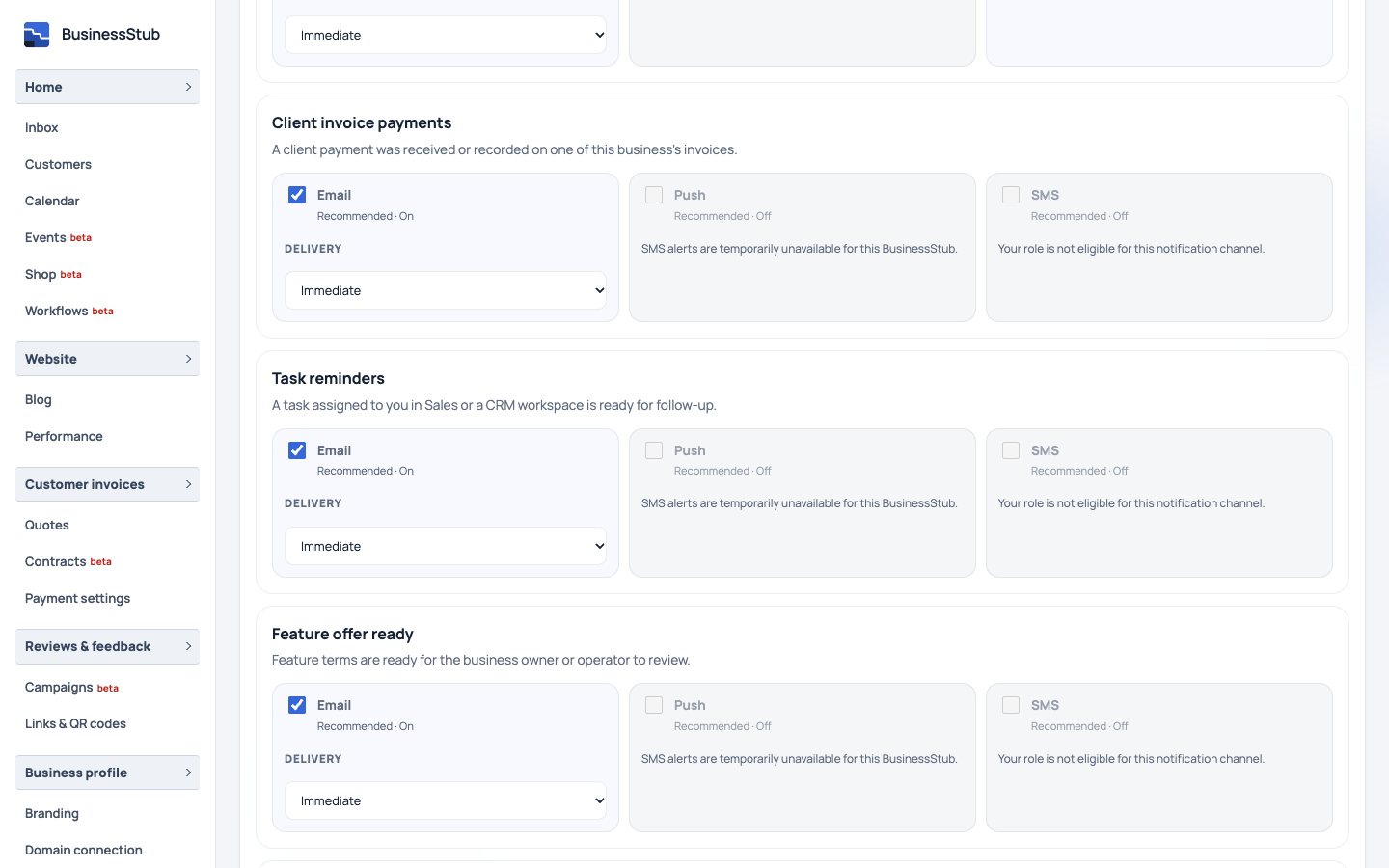
Check the saved email, spam folder, chosen events, quiet hours, digest timing, and business. Profile and notification choices have separate save buttons.
A domain or email change is not verified yet
Use the instructions shown for that exact domain and provider. DNS can take time. If you are unsure about a mail record, ask before removing it—existing email may depend on it.
The chatbot is missing or has an old answer
Check the live page and the business information you can edit. If the problem remains, share the page, the question you asked, and the approximate time.
Appointments or available times look wrong
Check the time zone, weekly availability, time off, and connected calendar. If a connection needs attention, reconnect it once and note the affected date and meeting type.
The feedback page will not accept a response
Make sure the service is enabled, a real review destination is verified, settings are saved, and the page is Active. Test the permanent link before replacing a QR code.
An invoice or payment status looks wrong
Open that exact invoice and refresh its status. Sent or Viewed is not Paid. If Stripe or an offline payment may have completed, find the existing receipt or provider record before recording anything again.
Performance data looks old
Check the last snapshot, sync time, and connection message. Realtime and processed reports update differently, so try one sync or tracker check before reconnecting.
A short link or QR code opens the wrong page
Open the saved short link and scan the downloaded QR code. They may contain different destinations. Fix the saved destination you actually intend to distribute, then test again.
Billing does not show a renewal date
One-time charges do not renew. For a recurring service, ask BusinessStub to check the account link and billing record. A blank date alone does not mean the subscription ended.
Still stuck? Send the useful details
Tell us the business, page, expected result, actual result, time, and exact message. Add a safe screenshot if it helps. Leave out passwords, invitation links, private customer information, and card details.
Open a support request or check Community and support.
Need a hand?
Tell us the business, page, what you expected, and what happened instead. Please leave out passwords and private customer details.
Explore common fixes →