 BusinessStub
Begin with the business people recognize
Choose the right business, then check the public name, contact details, service description, and domain. If the identity itself is changing, involve the authorized account holder.
Build a simple, readable brand
Add the name, tagline, mark, colors, type, and corner style you want to use. The preview is there to catch low contrast, very long names, and buttons that do not stand out.
See where the shared brand appears
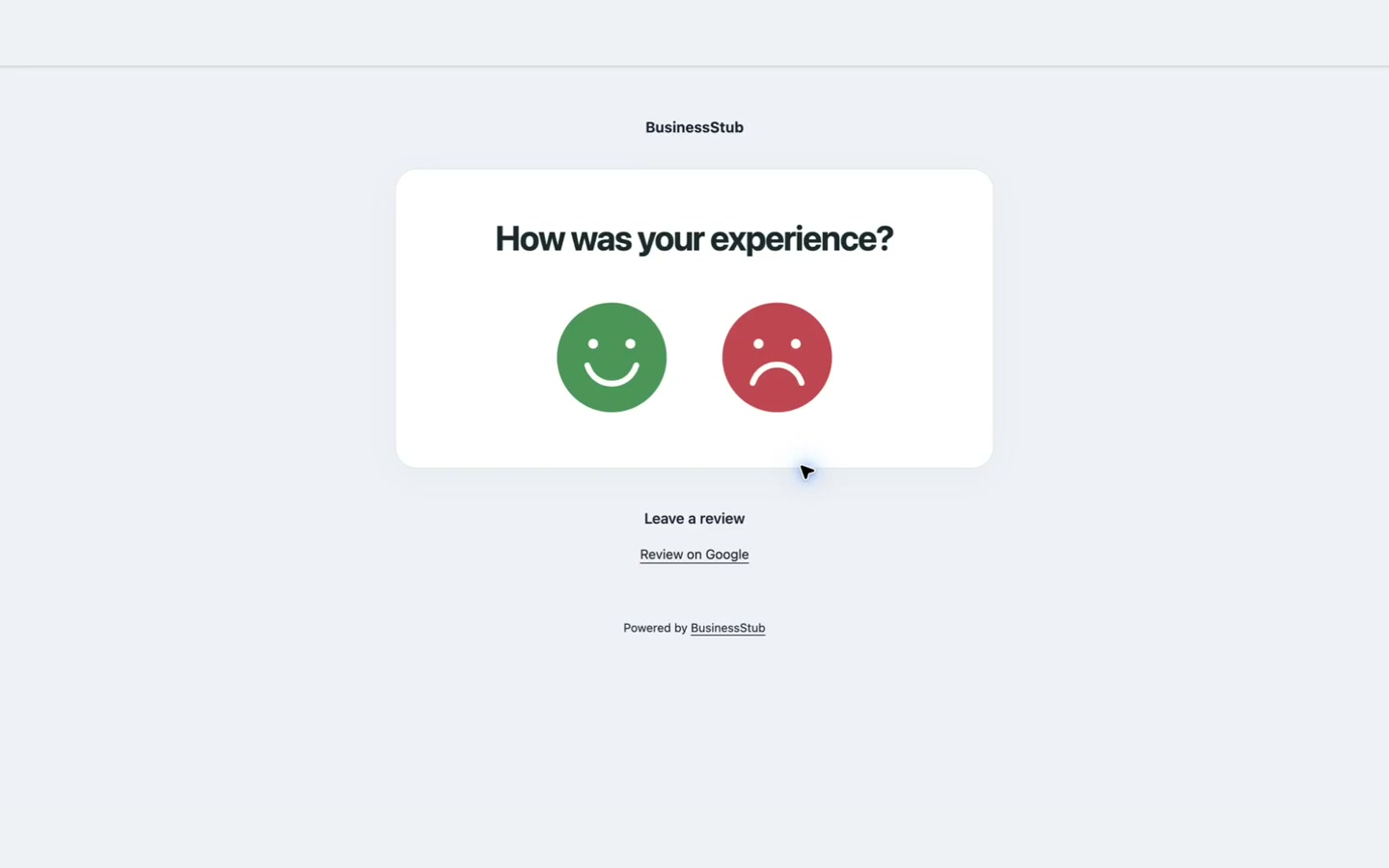
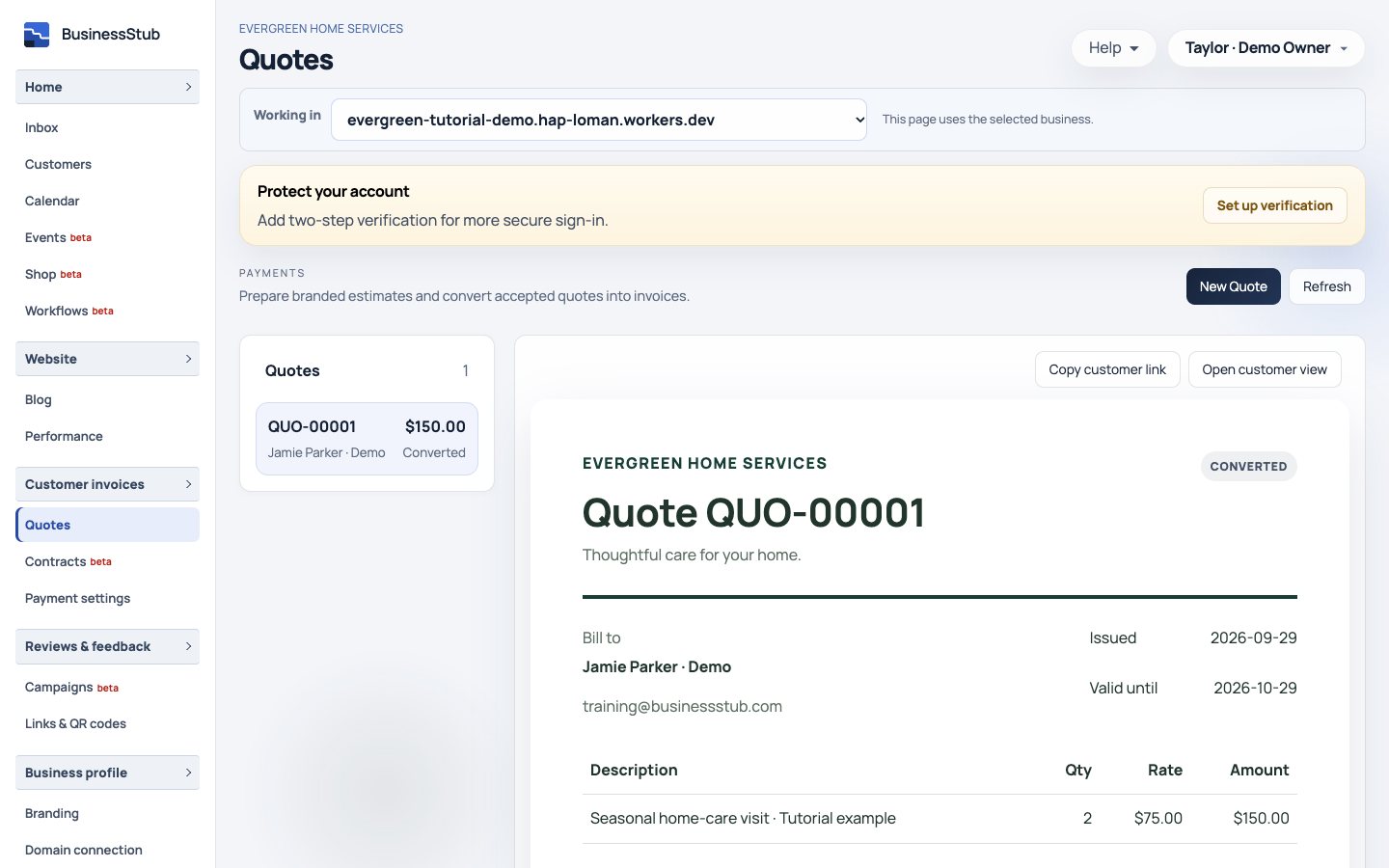
BusinessStub uses these choices on supported booking pages, events, meeting rooms, quotes, invoices, and review pages. Your separate website keeps its own design unless you change it through Website or a design request.
Open a real customer page before you finish
Check one enabled page on desktop and mobile. Make sure the name, mark, colors, and text all feel intentional and remain easy to read.
Need a hand?
Tell us the business, page, what you expected, and what happened instead. Please leave out passwords and private customer details.
Explore common fixes →