 BusinessStub
Get the basics right before the first document
Set your currency, terms, numbering, branding, and payment methods once, then give each quote or invoice a final look. Saved documents keep their own copy of those details, even if your defaults change later.
Card payments appear only after Stripe is connected and ready.
Make the quote easy to understand
Choose the customer, describe the work plainly, add the price and terms, and preview the customer page before sharing its private link.
Marking a quote Sent updates its status; it does not send an email by itself.
Acceptance is a decision, not a payment
When the customer accepts, you can turn the quote into an invoice. Check the new due date, recipient, and payment choices—the invoice is a new document, not just a renamed quote.
Send the invoice you meant to send
Read the saved invoice once more before emailing it. “Sent” means the message was handed off, not that the customer opened it or paid.
Record cash, check, or another offline payment only after you actually receive it. That keeps the balance and receipt honest.
Your customer invoices are not your BusinessStub bill
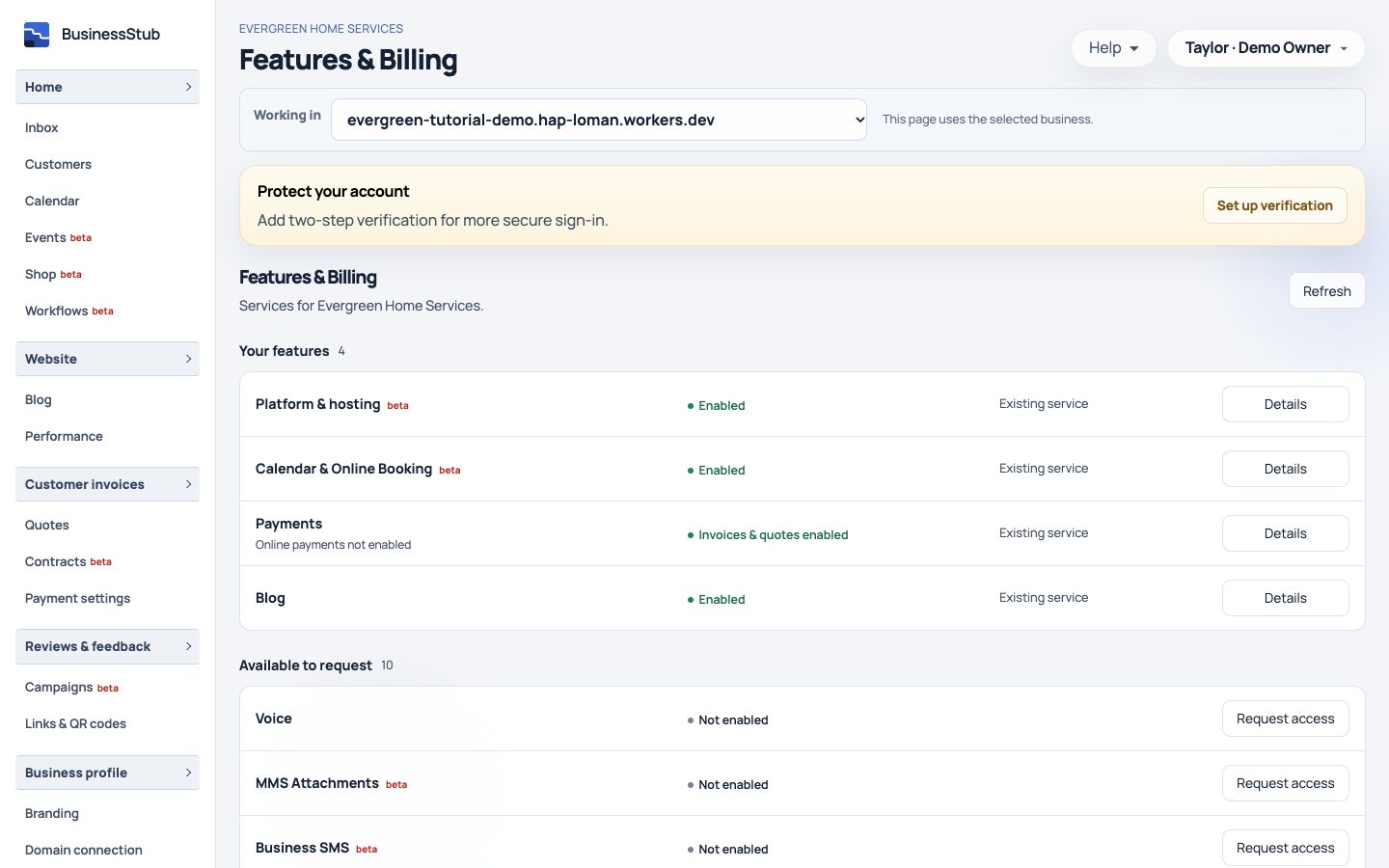
The money customers owe your business is separate from the fees your business owes BusinessStub. Changing or paying one does not settle the other.
Need a hand?
Tell us the business, page, what you expected, and what happened instead. Please leave out passwords and private customer details.
Explore common fixes →