2:10 video + guide

Prepare and test your website chatbot

The chatbot gives visitors a helpful first response when a person is not immediately available. Use it for common public questions and inquiry handoff, then improve its knowledge from the conversations people actually start.

Where to find it

Follow this path in BusinessStub

  1. 1Open workspace
  2. 2Business settings
  3. 3Business profile
  4. 4Chatbot
Open this area in your workspace →

Product examples

What this looks like

The customer view uses the saved chatbot title and greeting on the live fictional tutorial website.

The recording uses a fictional business. Choose your own business before following along. A chatbot can answer common public questions, but saved inquiries may still need a person to follow up in Inbox.

01

Give it the facts customers need

Use clear, public information about services, hours, service areas, and how to get help. Leave passwords, private customer details, and internal instructions out of anything the chatbot may share.

Inside your workspace
Chatbot settings keep the greeting, public business knowledge, and lead prompt together.
02

Let real conversations guide the next update

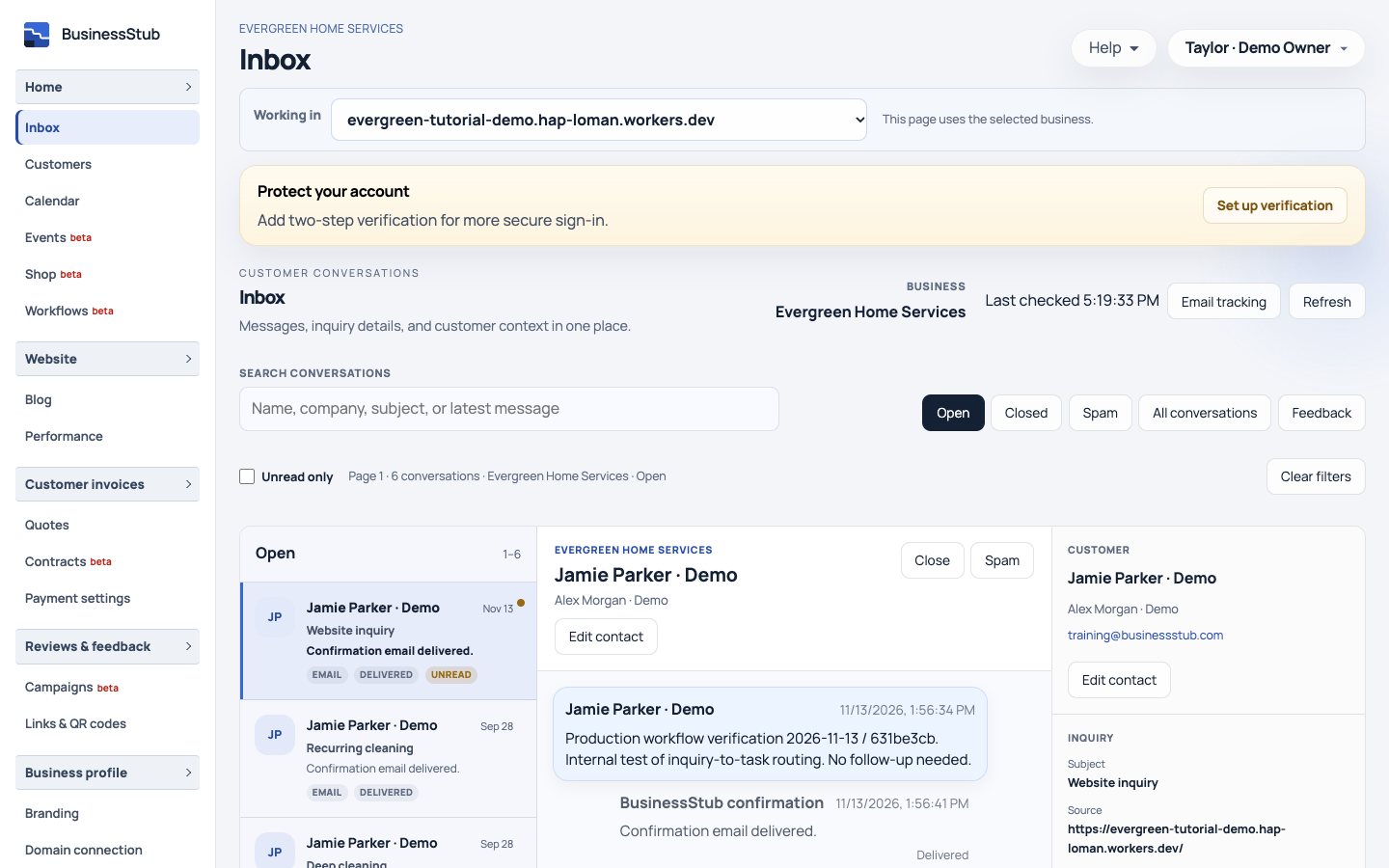
Read chatbot conversations in Inbox. Follow up when a customer needs a person, and notice the questions that keep coming up—they are often the best clues for what to improve.

03

Ask one simple question after a change

Open the live website and try the updated fact in an ordinary customer question. If the widget is missing or the old answer remains, note the page, question, and time when asking for help.

Need a hand?

Tell us the business, page, what you expected, and what happened instead. Please leave out passwords and private customer details.

Explore common fixes →